Data transfer: Arina and Velox
This page covers how to get your data off the Spectra computers at Stanford SNSF: Arina 4DSTEM datasets and Velox HAADF .emd images to a USB drive, plus how to mount the lab Mallard network share for remote access. Drafted by Sangjoon Bob Lee from staff notes and images.
Overview
| Task | How |
|---|---|
| Save Arina 4DSTEM data to USB | Plug USB into the Arina PC, copy the dataset |
| Save HAADF images to USB | Copy Velox CaptureData folder to USB |
| Mount the Mallard network share | Map the lab share as a network drive |
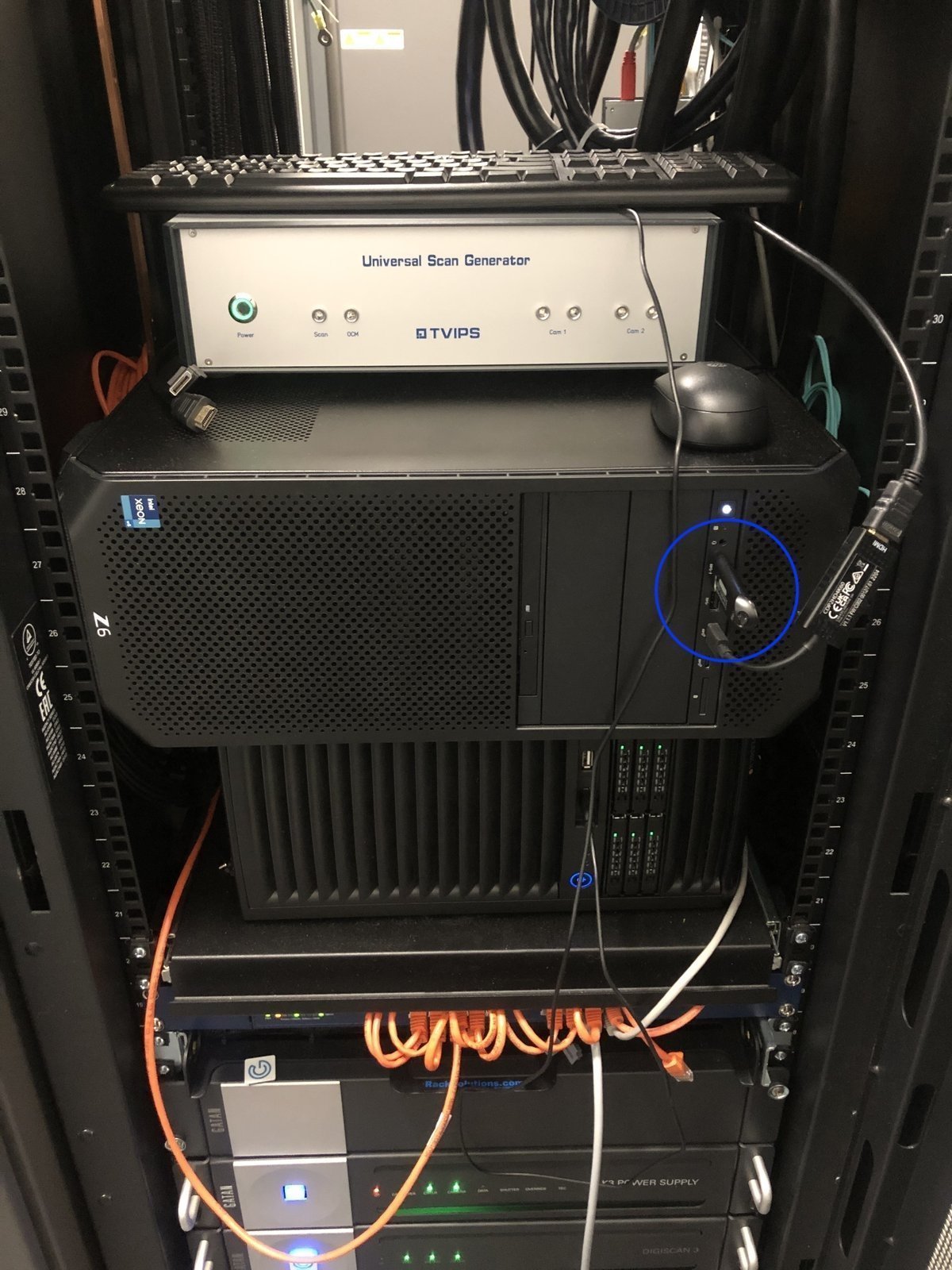
Plug your USB into the Arina PC (the TVIPS scan generator PC, USB port circled below), then copy your dataset to it.
Save HAADF images to USB
Velox saves HAADF images and other .emd files locally on the control workstation.
-
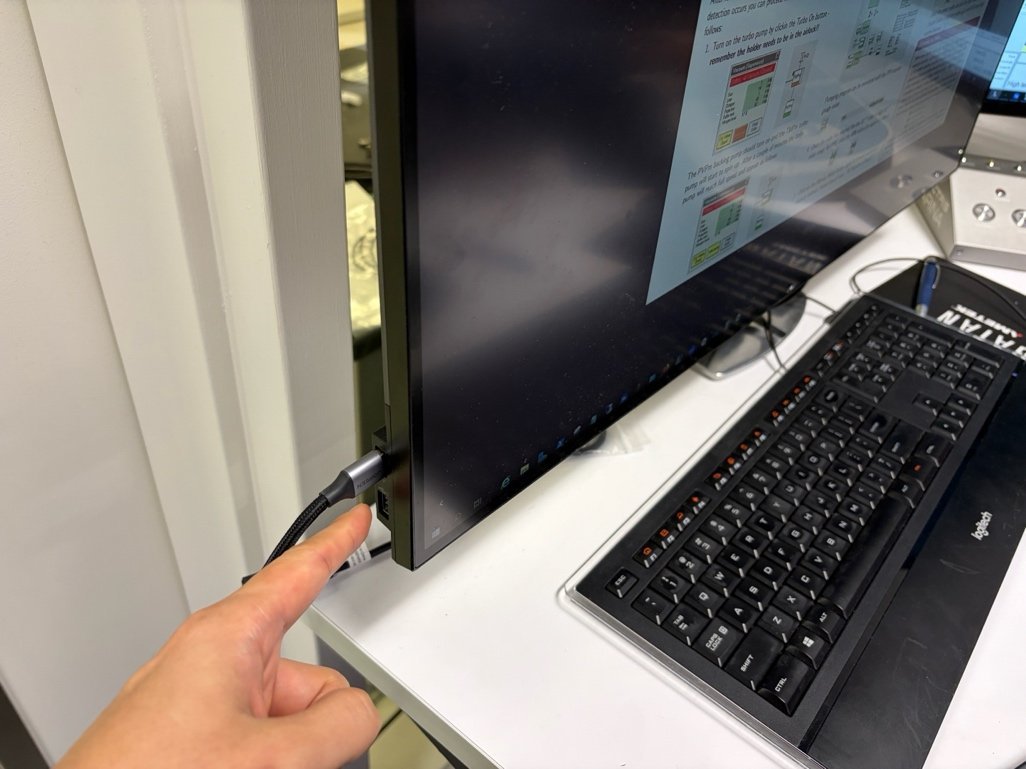
Plug in the USB drive
-
Insert your USB drive into the PC. It appears as a new drive in File Explorer.
-
-
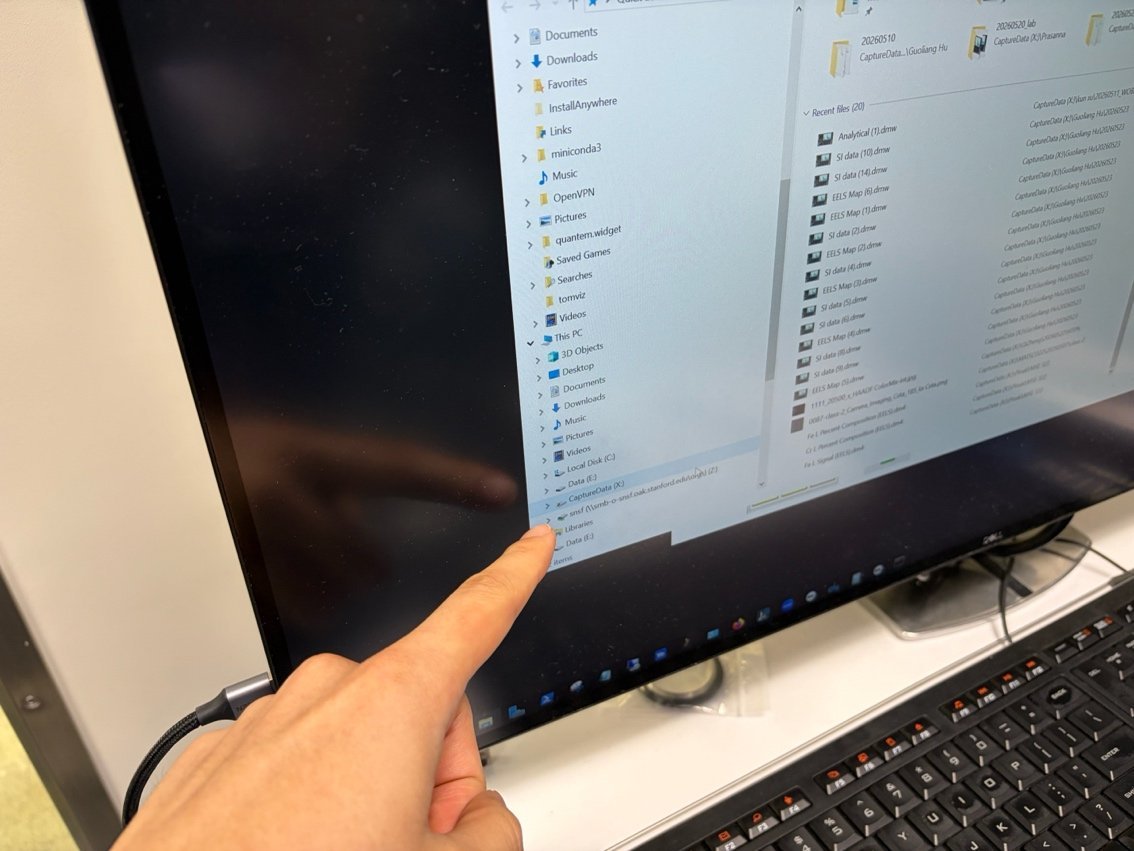
Find the CaptureData folder and copy
-
Open the
CaptureData (X:)folder. Velox saves your session’s.emdfiles here, organized by date. -
Copy your dated folder to the USB drive.
-
Mount the Mallard network share
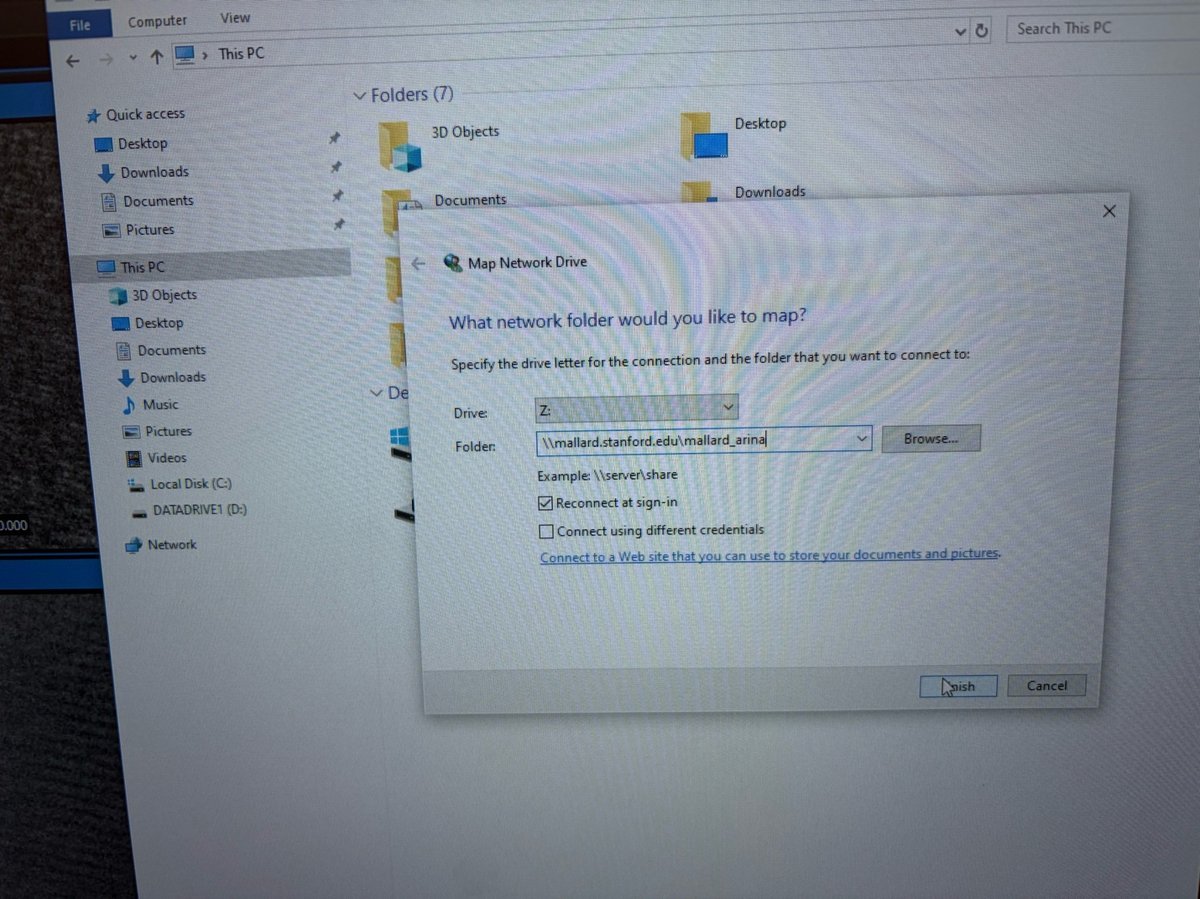
For remote access to the lab data server, map the Mallard share as a network drive instead of copying to USB.
-
Open Map network drive
-
In Windows File Explorer, right-click
This PCand selectMap network drive....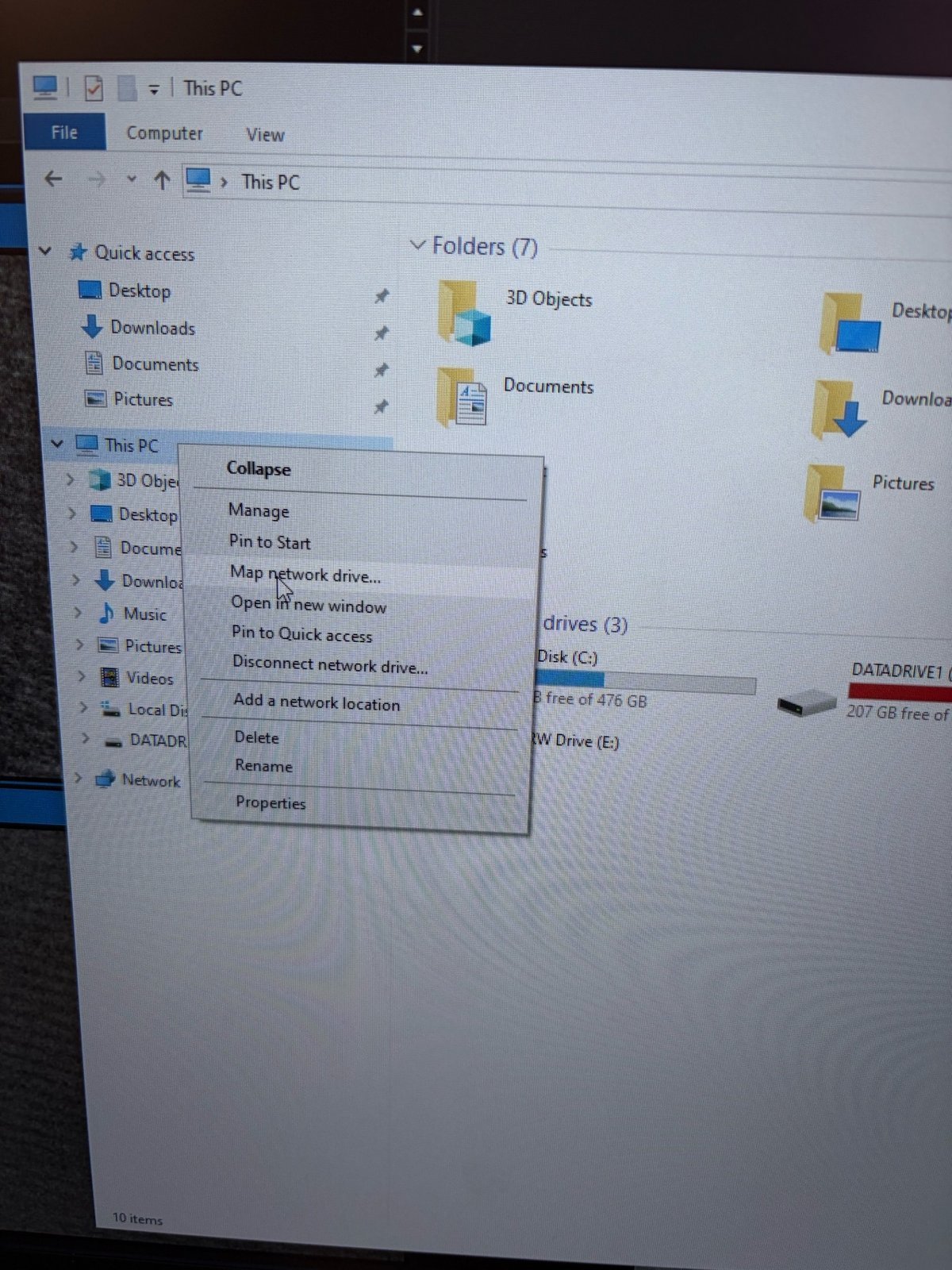
-
-
Enter the share path
-
Set
DrivetoW:andFolderto\\wigeon\streaming. -
Check
Reconnect at sign-in, then clickFinish. -
Enter the password when prompted. The password is in the pinned message of the
colab-computeSlack channel.Placeholder — REPLACE with wigeon.
-